Importing Information From Connect into BrightPay cloud
If you used Connect while using BrightPay for Windows or Mac we have created an import facility in order to import Employee data such as payroll and HR documents from Connect into BrightPay cloud.
Please note you can import an employer's Employee data from Connect to BrightPay cloud only once. This import option can only be selected once per each employer and you cannot reset this or import again for the same employer.
Payroll documents such as payslips for employees will be imported and HR Documents uploaded under the Documents section in Connect for the employer.
This feature is available under > Employer > Employee Portal > Settings > Import Employee Data from Connect.
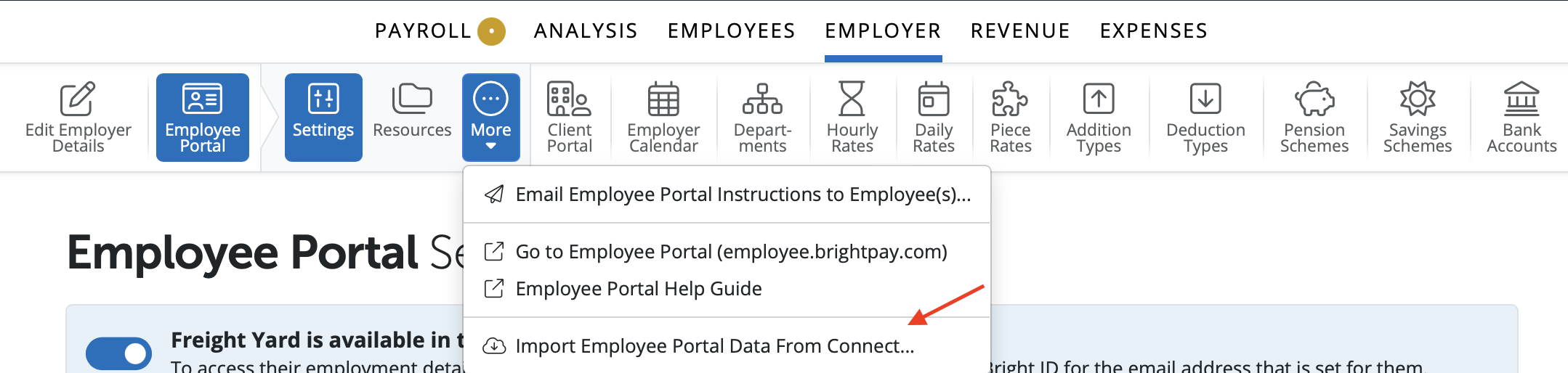
Please note: This is a one time import option per employer. If you select to import an employer's employee data from Connect to BrightPay cloud this cannot be repeated for the same employer.
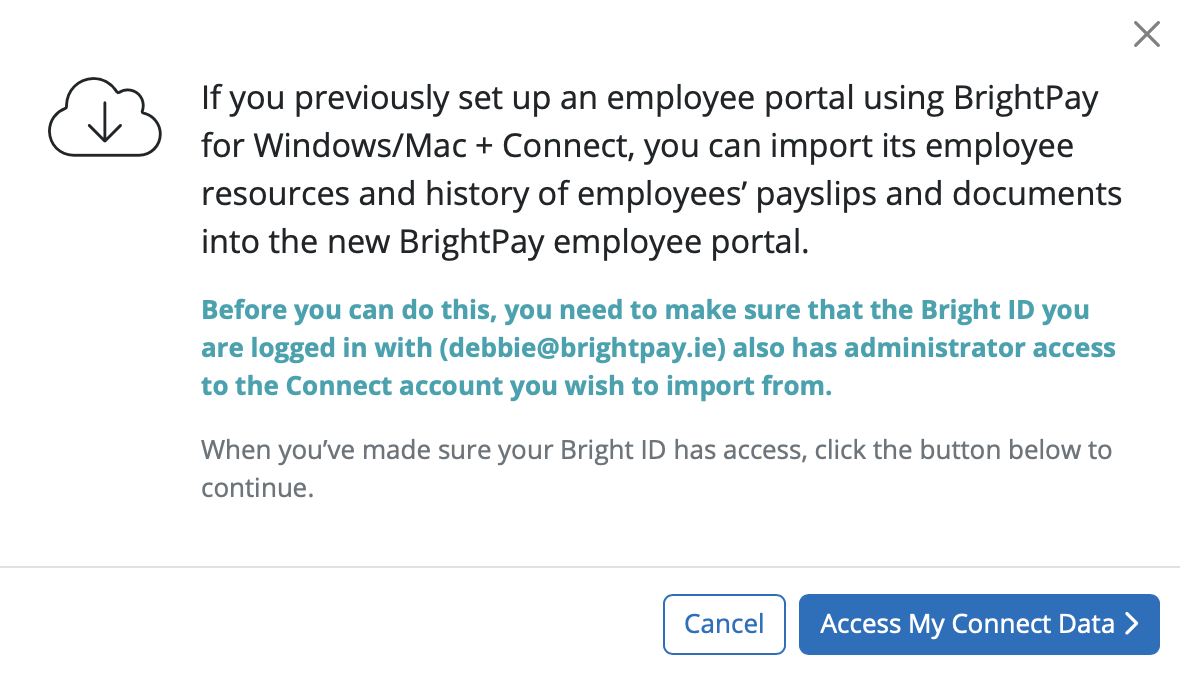
The Bright ID you are signed into BrightPay cloud with has to match the email address that is set up as an administrator on the Connect account.
The user must be an administrator or owner on the BrightPay cloud Organisation in order to use this option.
To begin the import process for the employer you have opened in BrightPay cloud please select Employer > Employee Portal > Settings > Import Employee Data from Connect.
A message will show for it you used the employee portal with BrightPay for Windows or Mac and Connect you can import the payroll documents and HR Resources into the BrightPay employee portal.
If you wish to continue please select 'Access My Connect Data'
If the employer's name in BrightPay matches the employer's name in Connect BrightPay will auto-populate the employer's name on the employer list you can select from to import data.
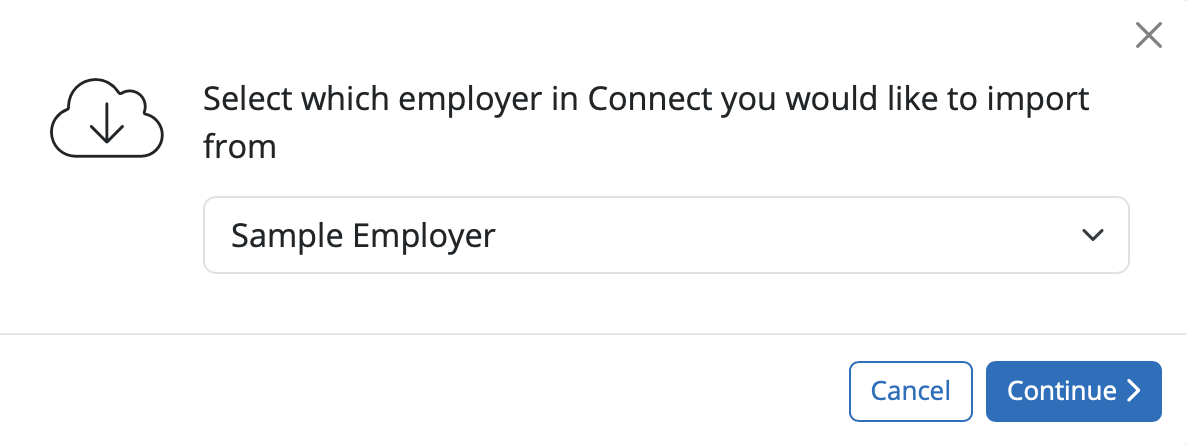
If the employer's name is different you can select the employer's name in the dropdown menu.
Once the employer is selected, please select 'Continue' to start the import. A confirmation message will appear to ensure you have the correct employer selected. If you wish to continue please select 'Yes'.
Please note: Once you have started the import this cannot be cancelled or reset.
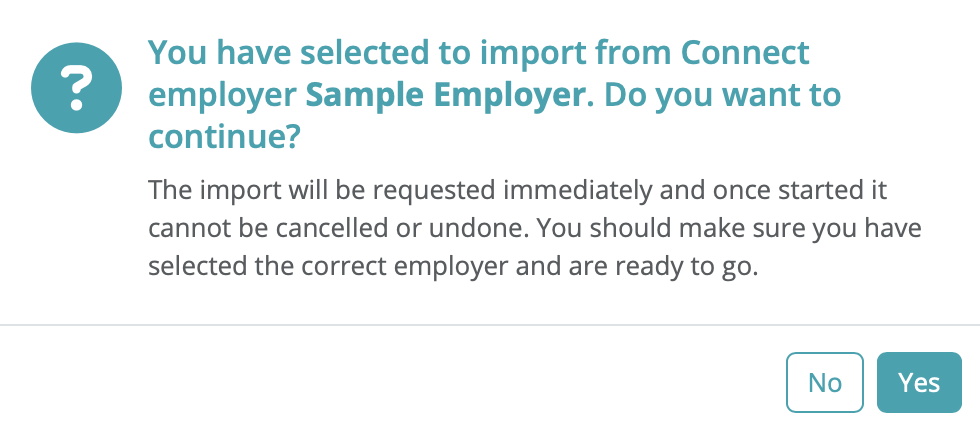
All historical payslips and HR Resources will import. There is not an option to select individual employees' data or individual HR resources. All employee data in Connect for the employer will import
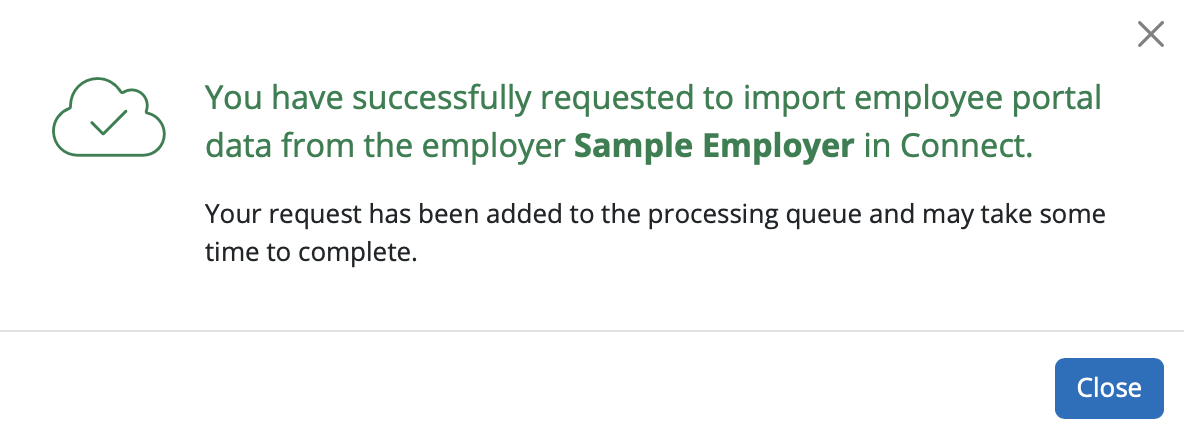
The import will take a few minutes for the data to move to BrightPay cloud.
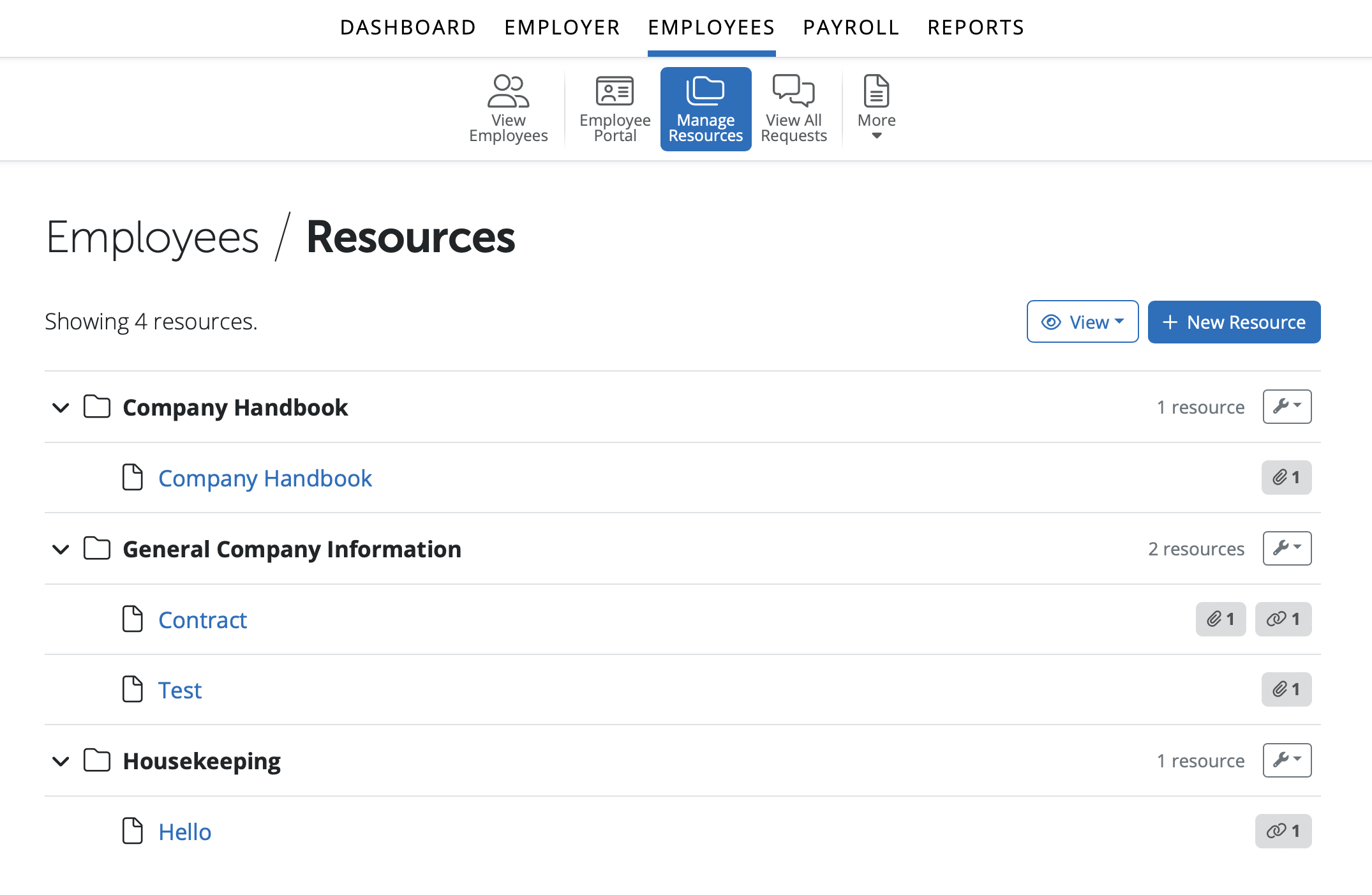
The HR Documents imported will have the same details and rules applied including access rules that were set up in Connect. HR Resources imported will be available to view/access for the employer in BrightPay under > Employer > Employee Portal > Resources. They will be available for users on the Client Portal to access under > Employees > Manage Resources.
Employees' historical payroll documents will be available to view on their Employee Self Service Portal.
Need help? Support is available at 01 8352074 or [email protected].