
Black Friday
 

Printing Payslips

After finalising the pay period, simply click the ‘Create/Send Payslips  > Email/Download PDF Payslips for Multiple Employees’ button within the 'Payroll' function.


1) On the left hand side select the employees for whom you wish to email/download payslips. Several options for selecting which payslips to print are available by clicking the ‘Select By’ button.

2) The payslip template will default to BrightPay - A5 format. 

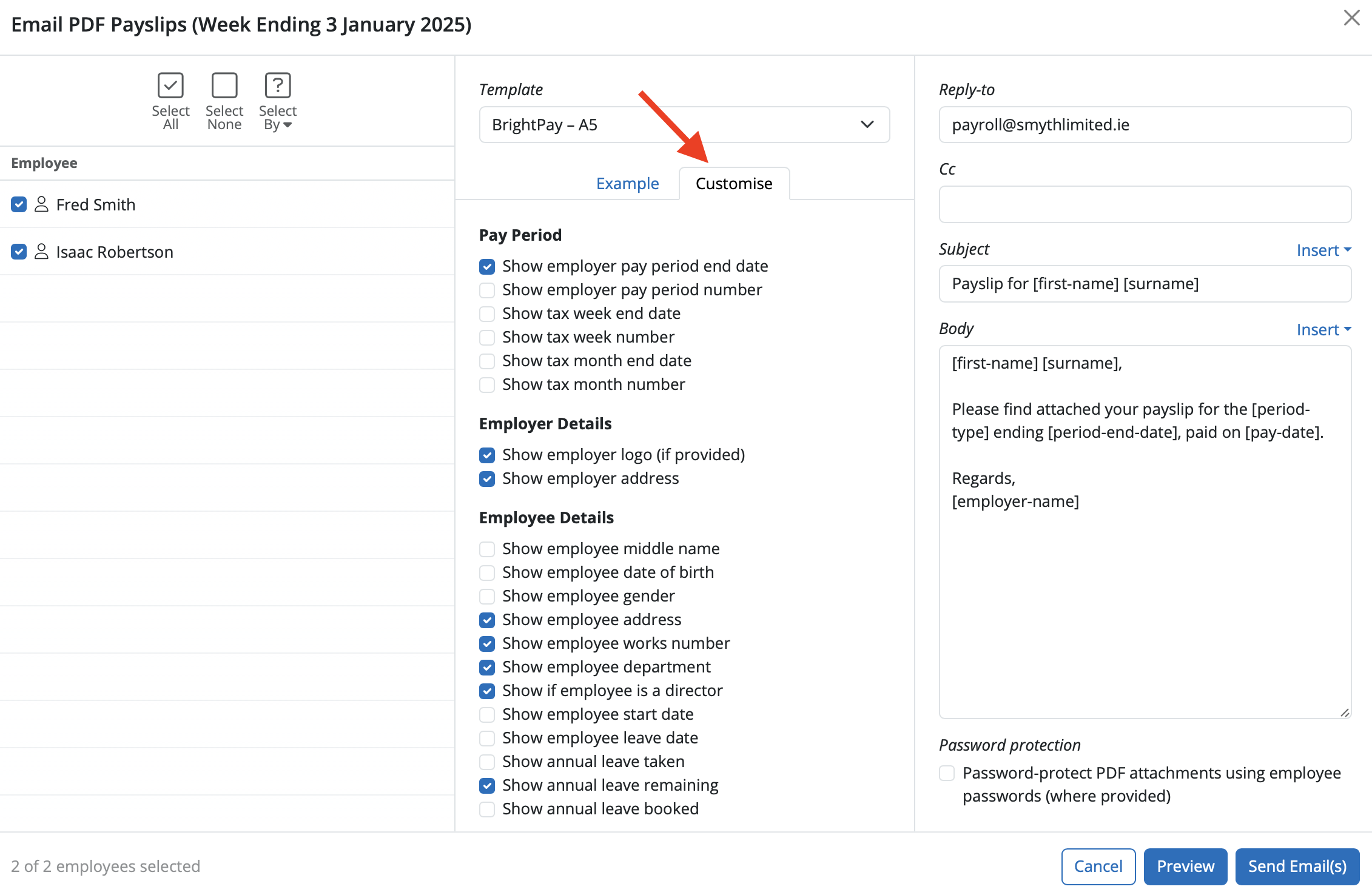
3) To further customise your payslips before printing, click the ‘Customise’ tab in the middle of the screen. This facility allows you to add or remove certain information on the payslip, for example to add a company logo or an employer address.


4) To preview the payslips before printing, simply select ‘Preview’.
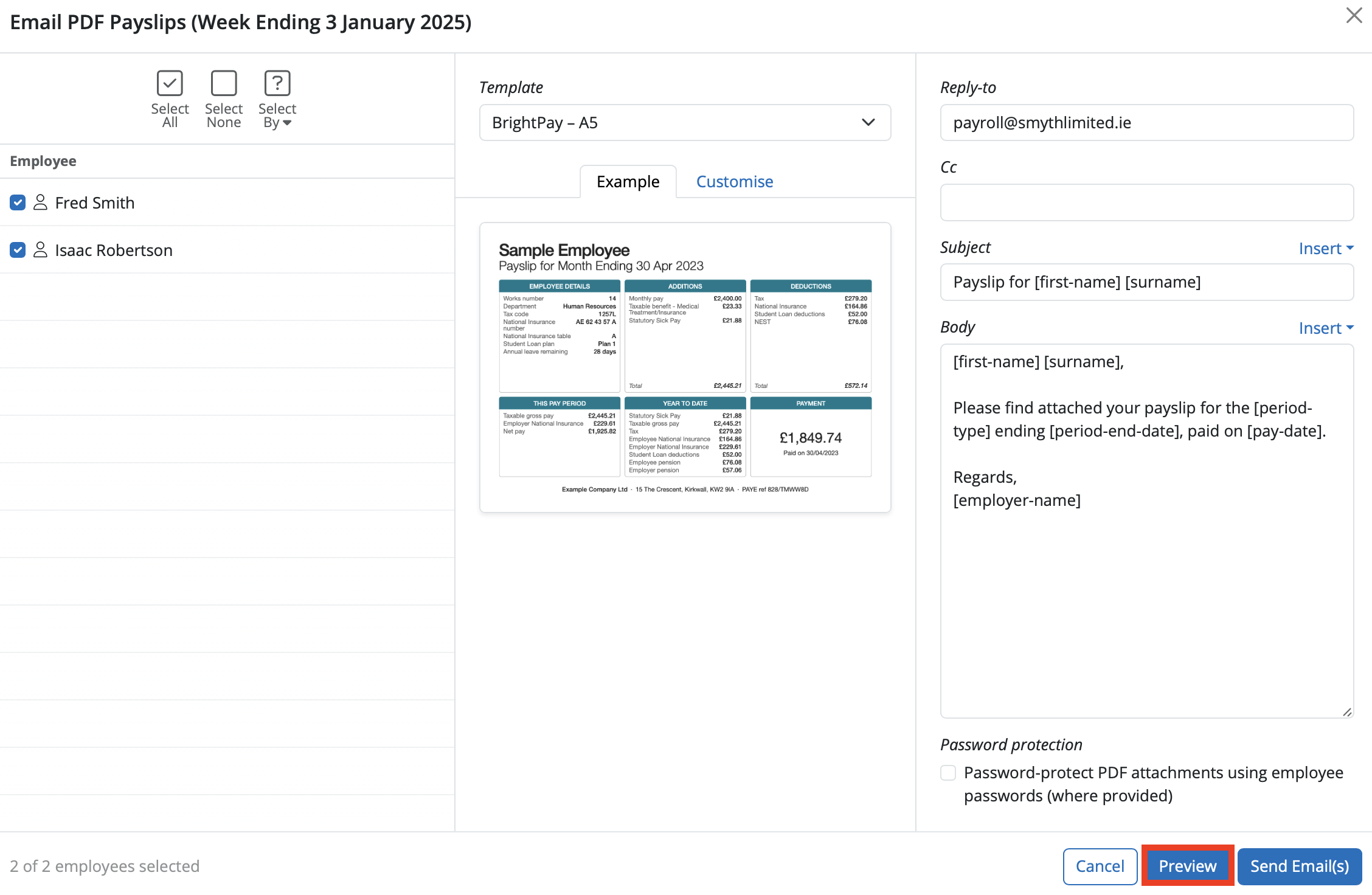


5) Select ‘Email/Download Payslips’ when ready.


6) Payslips can be emailed or downloaded again at any time.


Additional Information

BrightPay allows for specific period payments, daily payments, hourly payments, piece payments, additions and deductions to be given a custom description to appear on a printed payslip, if required.
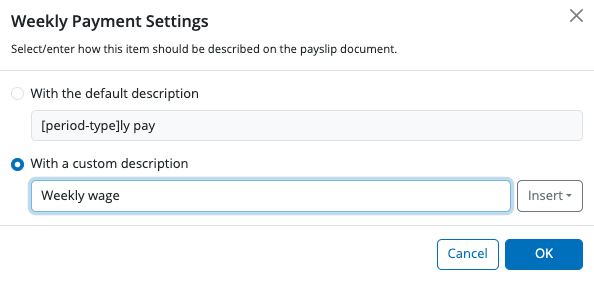
  • To set a customised description, before finalising a payslip, click the spanner symbol for the pay item in question, followed by 'show on payslip with custom description': 
  • Enter the desired description and click 'OK':


  • On finalising the pay period, the employee's printed payslip will now reflect the customised description:


Please note: the customised payslip description will hold going forward until such time the user removes it. 

Need help? Support is available at 01 8352074 or [email protected].

BrightPay (Cloud) System Requirements2026 BrightPay - AvailabilityWhat's New in BrightPay?Auto Enrolment in BrightPayWhat's happening to BrightPay for Windows?Introduction to BrightPayGetting StartedStarting the New Tax YearImporting Into BrightPay from BrightPay WindowsMoving to BrightPay from another payroll softwareTwo Factor Authentication - OrganisationUser ManagementMultiUser EnhancementsEmployer DetailsEmployee DetailsDigital CertificatesRevenue Payroll Notifications (RPNs)Processing PayrollPayroll Submission Requests (PSRs)Importing Pay Data using CSV FileDistributing PayslipsPaying EmployeesMaking Corrections in PayrollPayroll Calendar 2025Payroll Calendar 2026Benefit in KindEmployee Self Service PortalBrightPay (Cloud) Service InfrastructurePayroll JournalsAnalysisPayroll DeductionsNational Minimum Living WagePensionsSwitching an Employee's Pay FrequencyYear EndEnhanced Reporting Requirements (ERR)BrightExpensesPayslip Translations2025 Budget - Employer Focus2026 Budget - Employer FocusAnnual LeaveEmployment Law - InformationSEPA format - Banks catered for in BrightPayTwo Factor Authentication - EmployeesAuto EnrolmentClient PortalResourcesRelease NotesImporting Information From Connect into BrightPay cloud