We are currently investigating an issue with BrightPay and have temporarily restricted some levels of access

BrightPay's Client Portal facilitates the setting up of two types of users - Super Users and Standard Users. Users are the individuals who have some level of access to the data for one or more of the employers available on the BrightPay Client Portal.
A Super User has full permissions in the Client Portal, with the ability to edit account settings, add other Standard Users, enable employee portal settings and resources, manage/update all employer and employee information, process employee self-service requests.
A Standard User typically has access to just one employer in the Client Portal, although they can be granted access to multiple employers if required. A Standard User can view all employer (and associated employees) information and process employee self-service requests, if the permissions are enabled.
To select options for all users for the Client Portal:
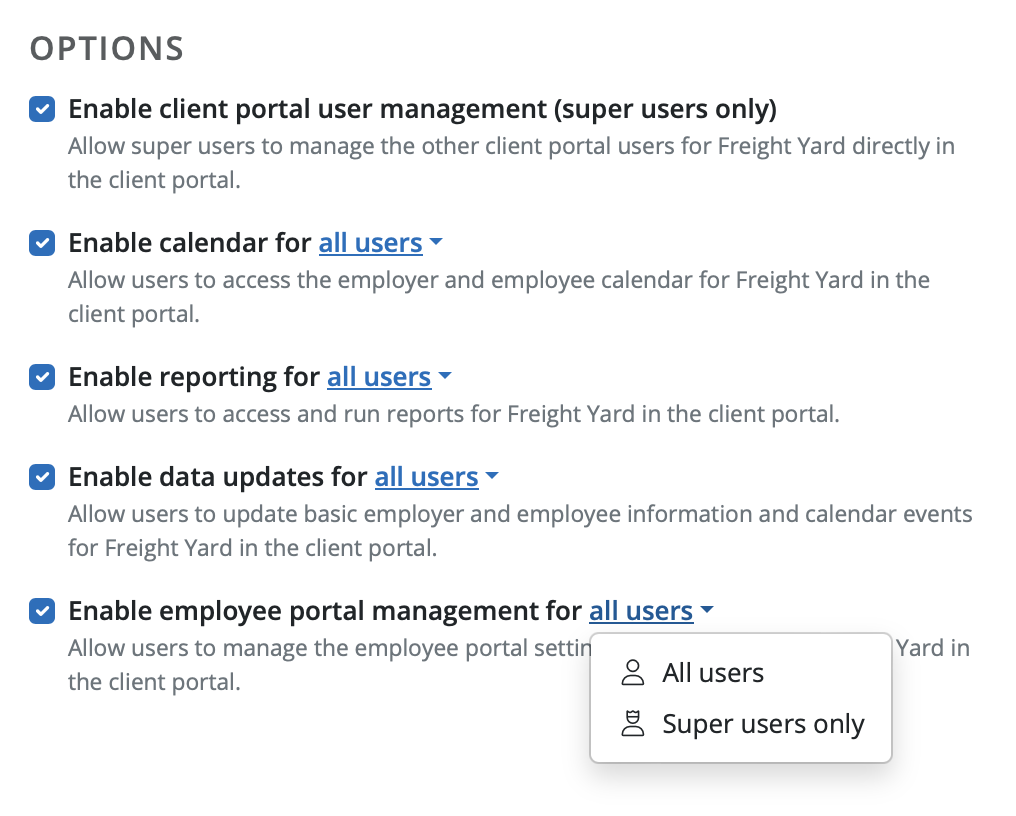
1) In BrightPay, open the employer you wish to add a user to the Client Portal for and go to > Employer > Client Portal > Settings. The five options are available under the Options heading on the right of the screen:
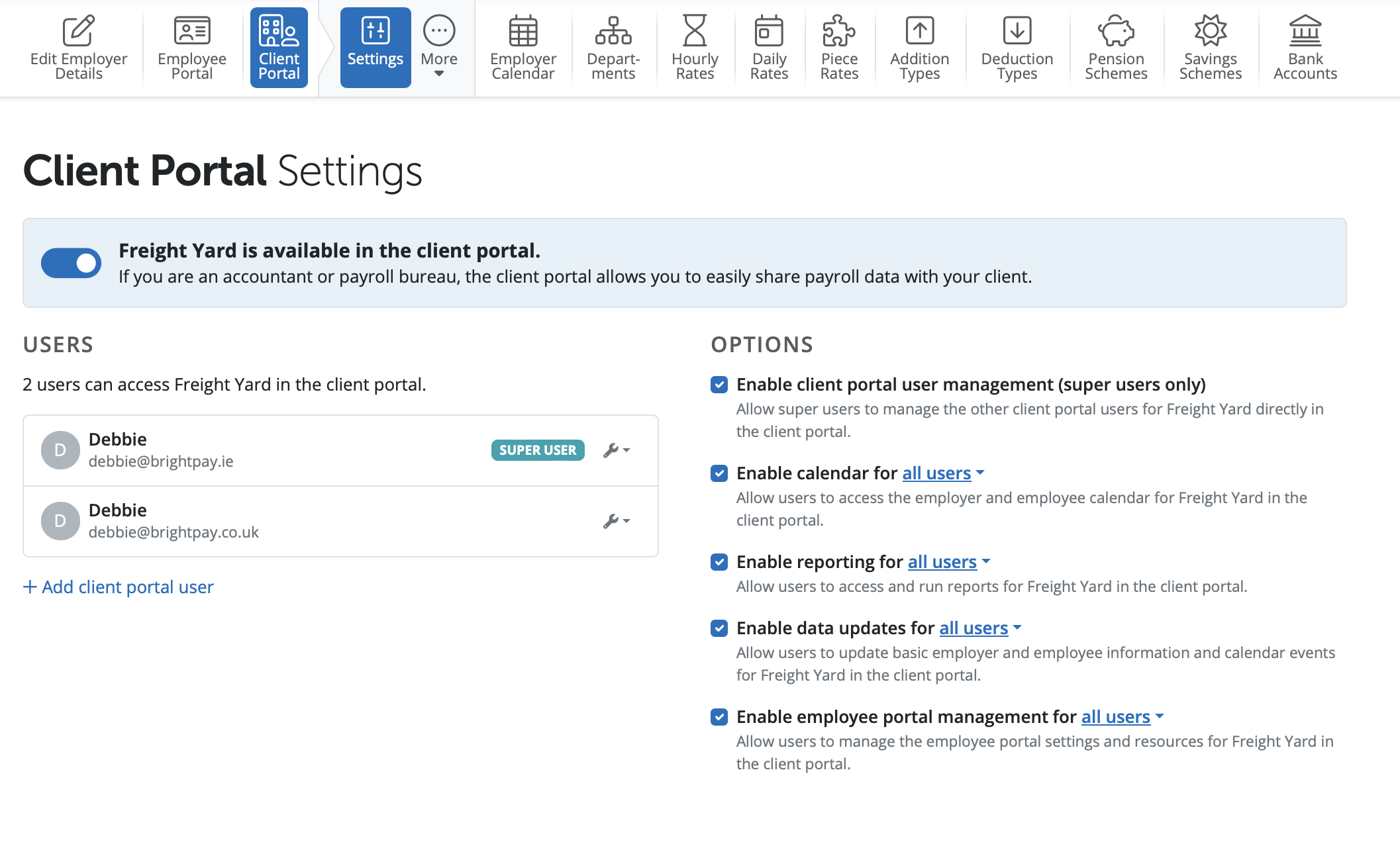
a) Enable client portal user management
This option allows Super Users to manage the other client portal users for the employer directly in the client portal. This is available for Super Users only.
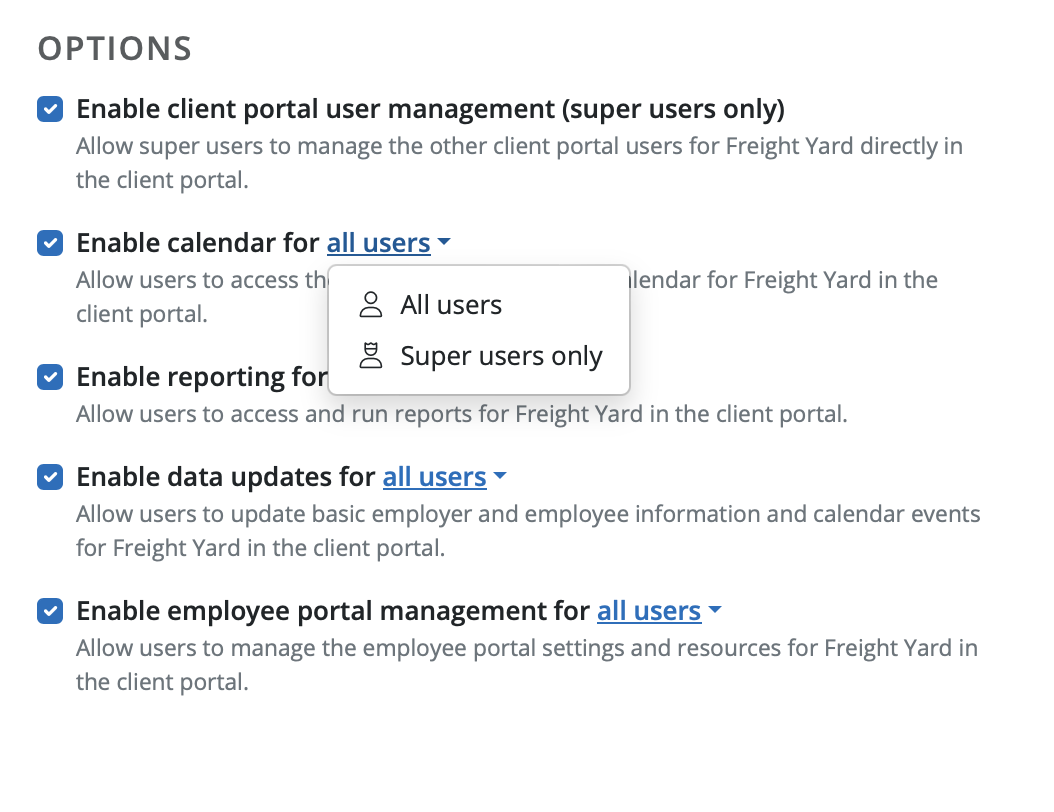
b) Enable calendar
This option allows users to access the employer and employee calendar for the employer in the client portal. Select if you wish to allow all users - Super and Standard Users to access the employer and employee calendar for the employer in the client portal or just Super Users. Select 'Save' to save changes.
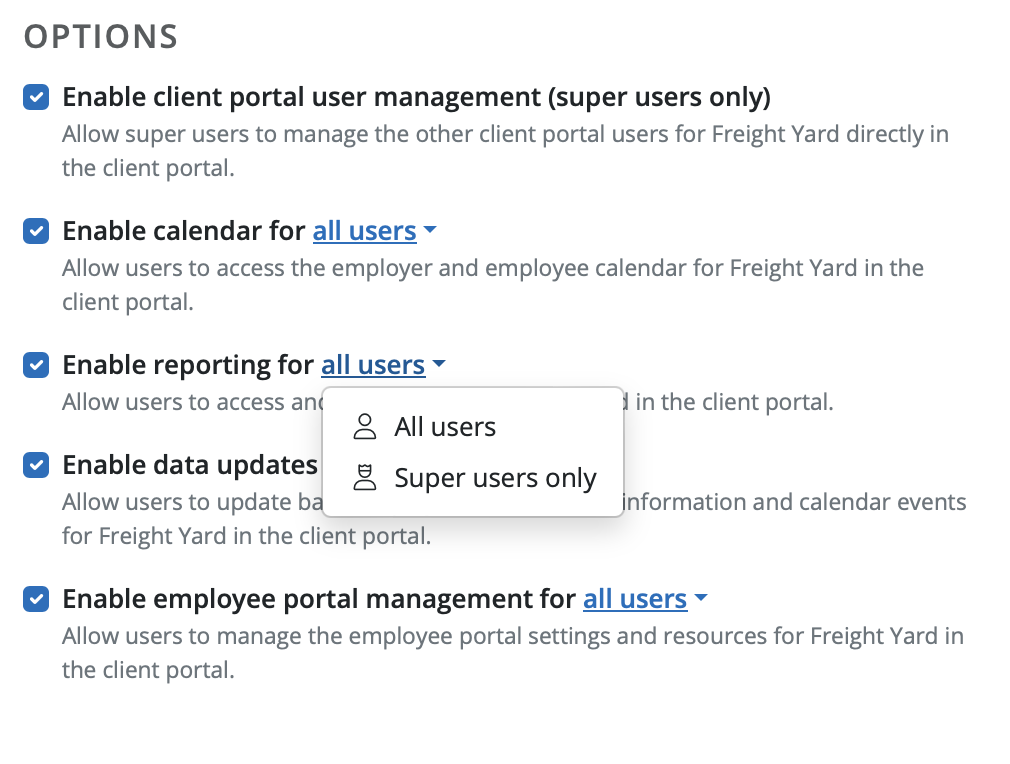
c) Enable reporting
This option allow users to access the reporting facility for the employer in the client portal. Select if you wish to allow all users - Super and Standard Users to access the reports option for the employer in the client portal or just Super Users. Select 'Save' to save changes.
d) Enable data updates
This option allow users to update basic employer and employee information for the employer in the client portal. Select if you wish to allow all users - Super and Standard Users to access the employer and employee calendar for the employer in the client portal or just Super Users. Select 'Save' to save changes.
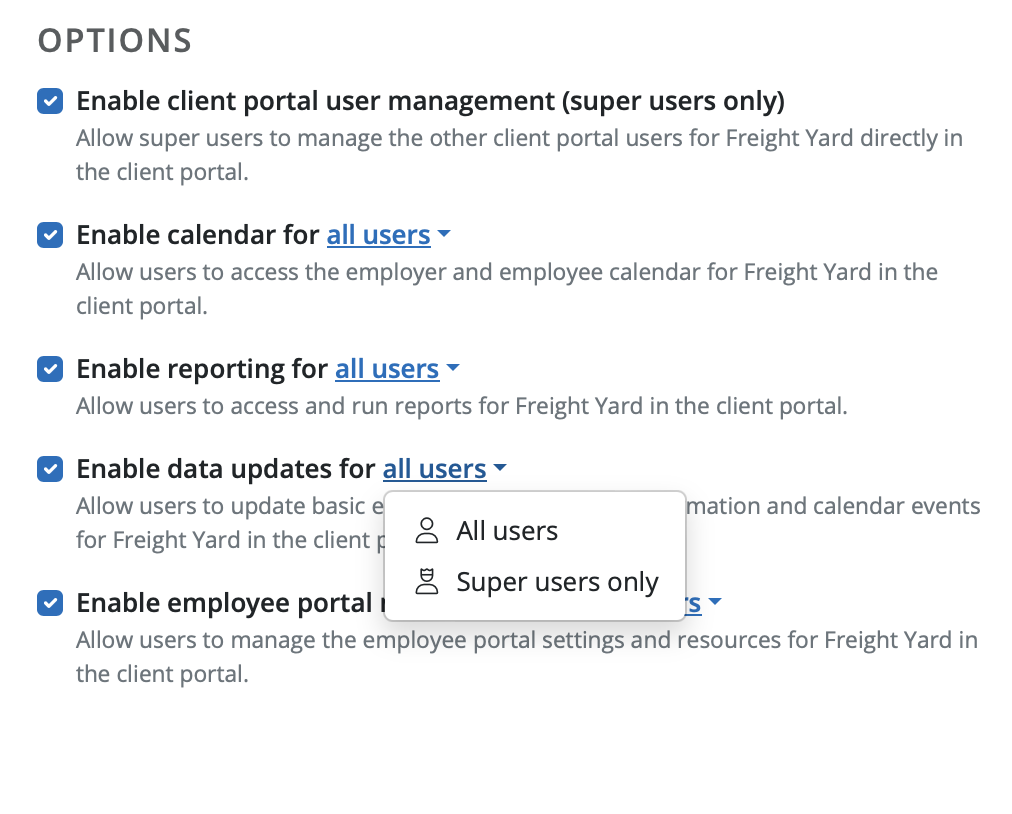
e) Enable employee portal management
This option allow users to manage the employee portal settings and resources for the employer in the client portal. Select if you wish to allow all users - Super and Standard Users to access the employer and employee calendar for the employer in the client portal or just Super Users. Select 'Save' to save changes.
Need help? Support is available at 01 8352074 or [email protected].







Copyright © 2026 Thesaurus Software Ltd T/A Bright Software Group.
Unit 35 Duleek Business Park, Duleek, County Meath, A92 N15E, Ireland
[email protected] 01 8352074