Black Friday
 

Employee - HR info


Departments

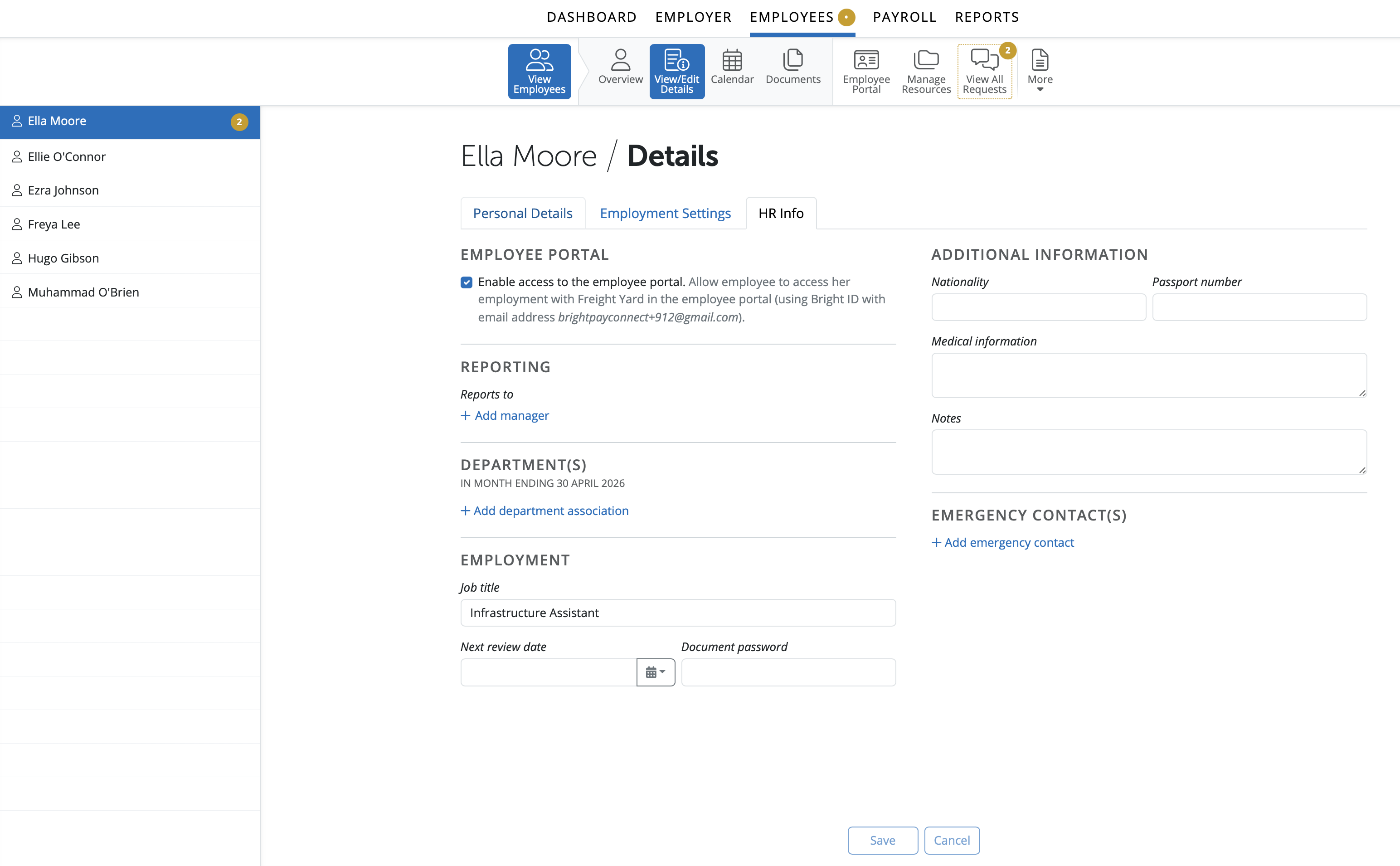
To allocate an employee to a department, click on Add Department Association and choose the desired departmental name from the drop down menu. If a department has not yet been set up, simply click on Add Department Association, followed by Add a Department, where you will be able to create a new department name.

An employee can be allocated to more than one department, if required. To do this, click on Add Department Association again and select an additional department from the drop down menu. Set the employee’s weighting in each department by dragging the bars to the percentage required.
 

Need help? Support is available at 01 8352074 or [email protected].

BrightPay (Cloud) System Requirements2026 BrightPay - AvailabilityWhat's New in BrightPay?Two Factor Authentication - OrganisationWhat's happening to BrightPay for Windows?Introduction to BrightPayGetting StartedStarting the New Tax YearImporting Into BrightPay from BrightPay WindowsMoving to BrightPay from another payroll softwareUser ManagementMultiUser EnhancementsEmployer DetailsEmployee DetailsDigital CertificatesRevenue Payroll Notifications (RPNs)Processing PayrollPayroll Submission Requests (PSRs)Importing Pay Data using CSV FileDistributing PayslipsPaying EmployeesMaking Corrections in PayrollPayroll Calendar 2025Payroll Calendar 2026Benefit in KindEmployee Self Service PortalBrightPay (Cloud) Service InfrastructurePayroll JournalsAnalysisPayroll DeductionsNational Minimum Living WagePensionsSwitching an Employee's Pay FrequencyYear EndEnhanced Reporting Requirements (ERR)BrightExpensesPayslip Translations2025 Budget - Employer Focus2026 Budget - Employer FocusAnnual LeaveEmployment Law - InformationSEPA format - Banks catered for in BrightPayTwo Factor Authentication - EmployeesAuto EnrolmentClient PortalResourcesRelease NotesImporting Information From Connect into BrightPay cloudAuto Enrolment in BrightPay