Black Friday
 

Processing Auto Enrolment

How to Process AE in BrightPay – Step-by-Step


1. Receiving AEPN Notifications

NAERSA will receive information when you retrieve your RPN or in respect of new employees when an employment is registered with Revenue
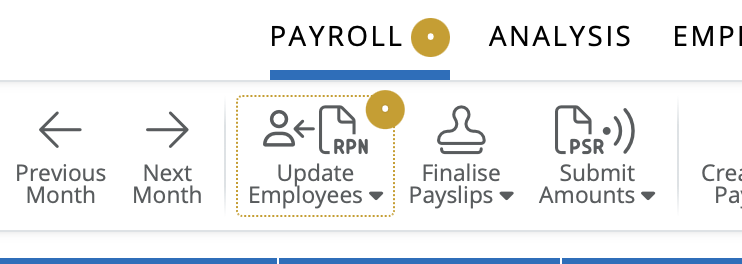
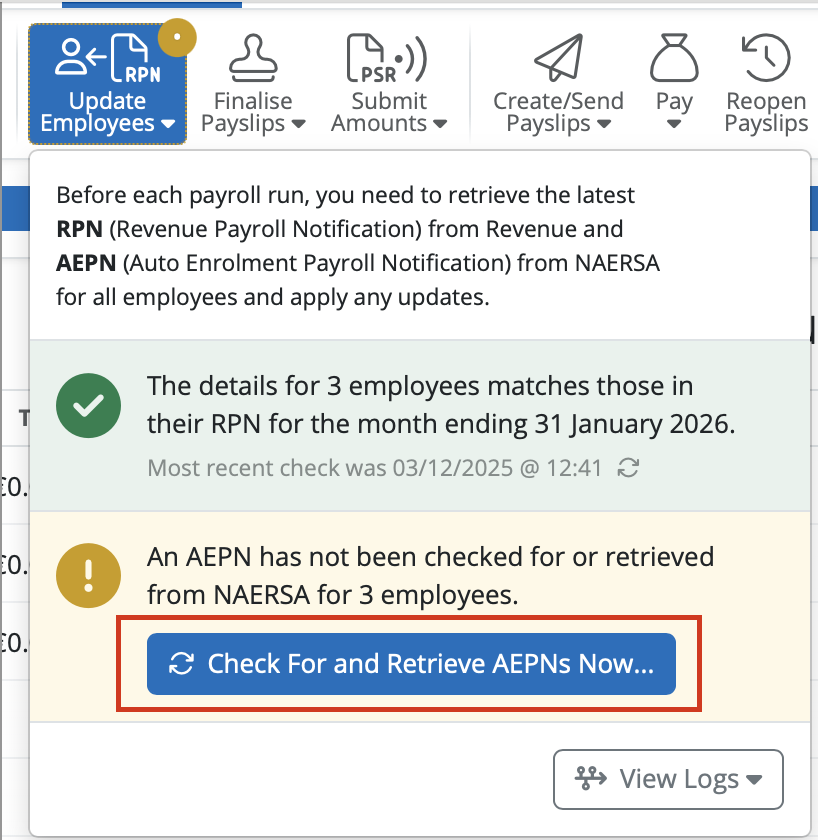
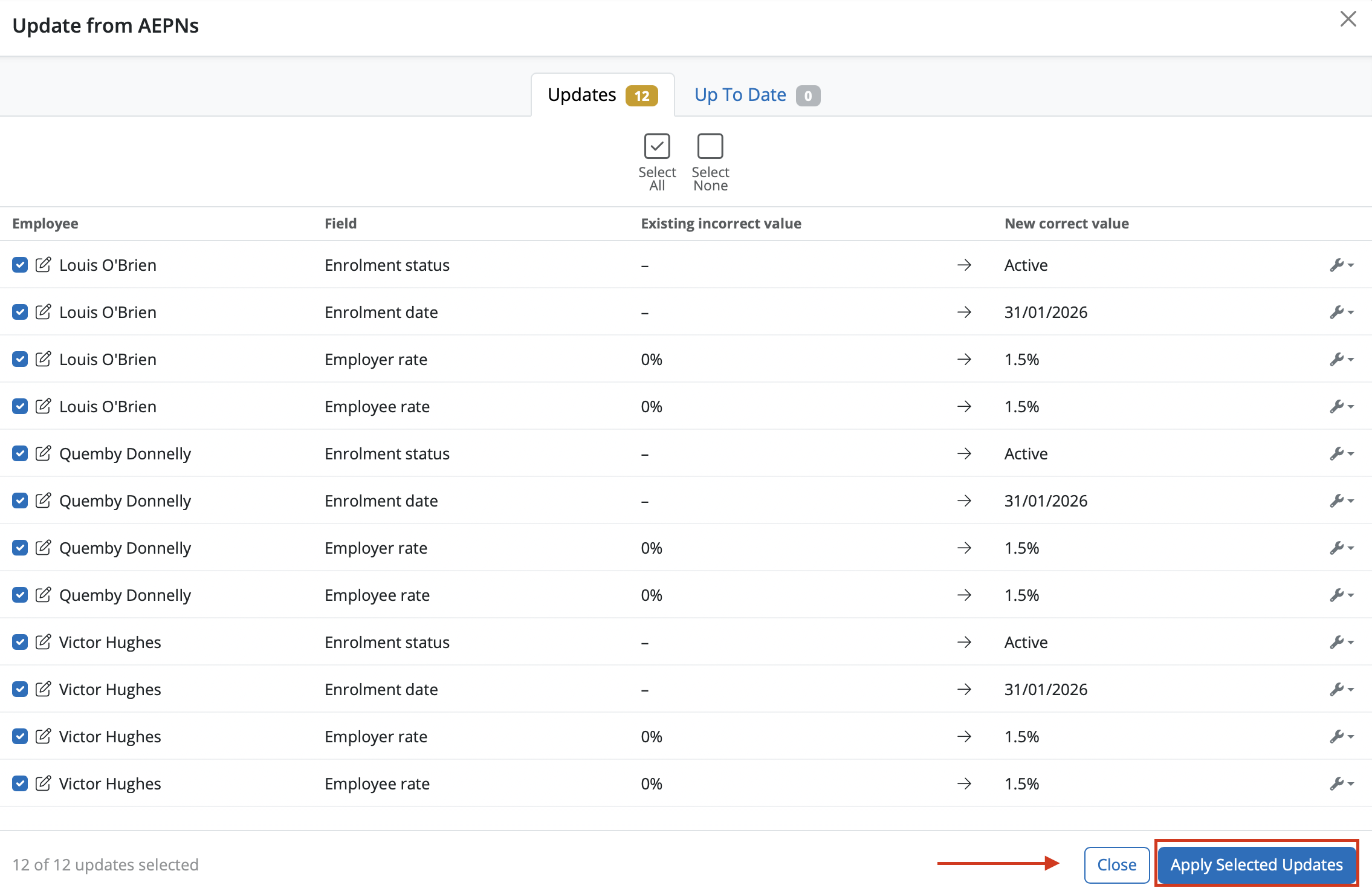
  • AEPNs download automatically when available
  • Banner notification appears
  • Apply selected changes


2. Processing Payroll

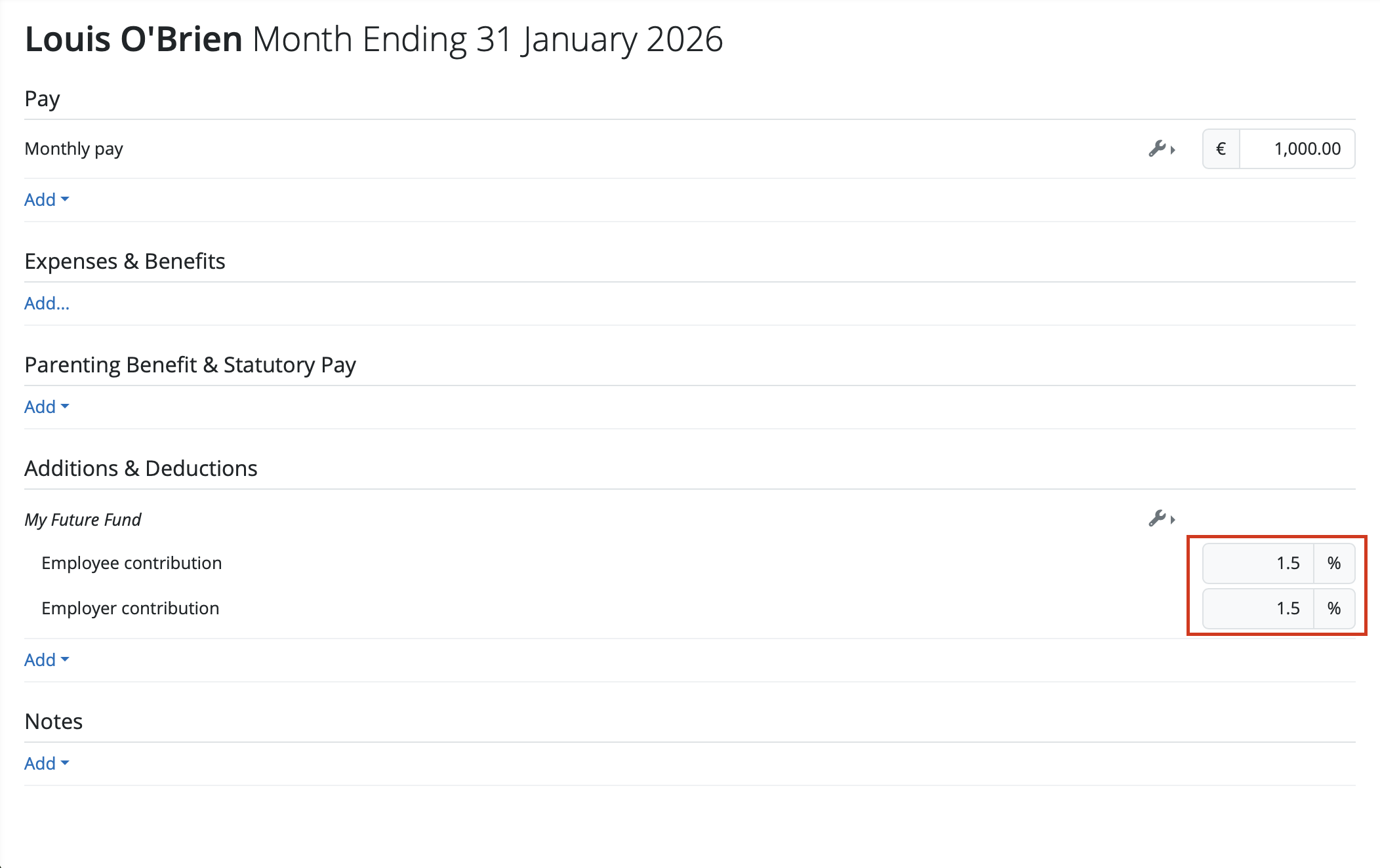
  • AE contributions calculate automatically
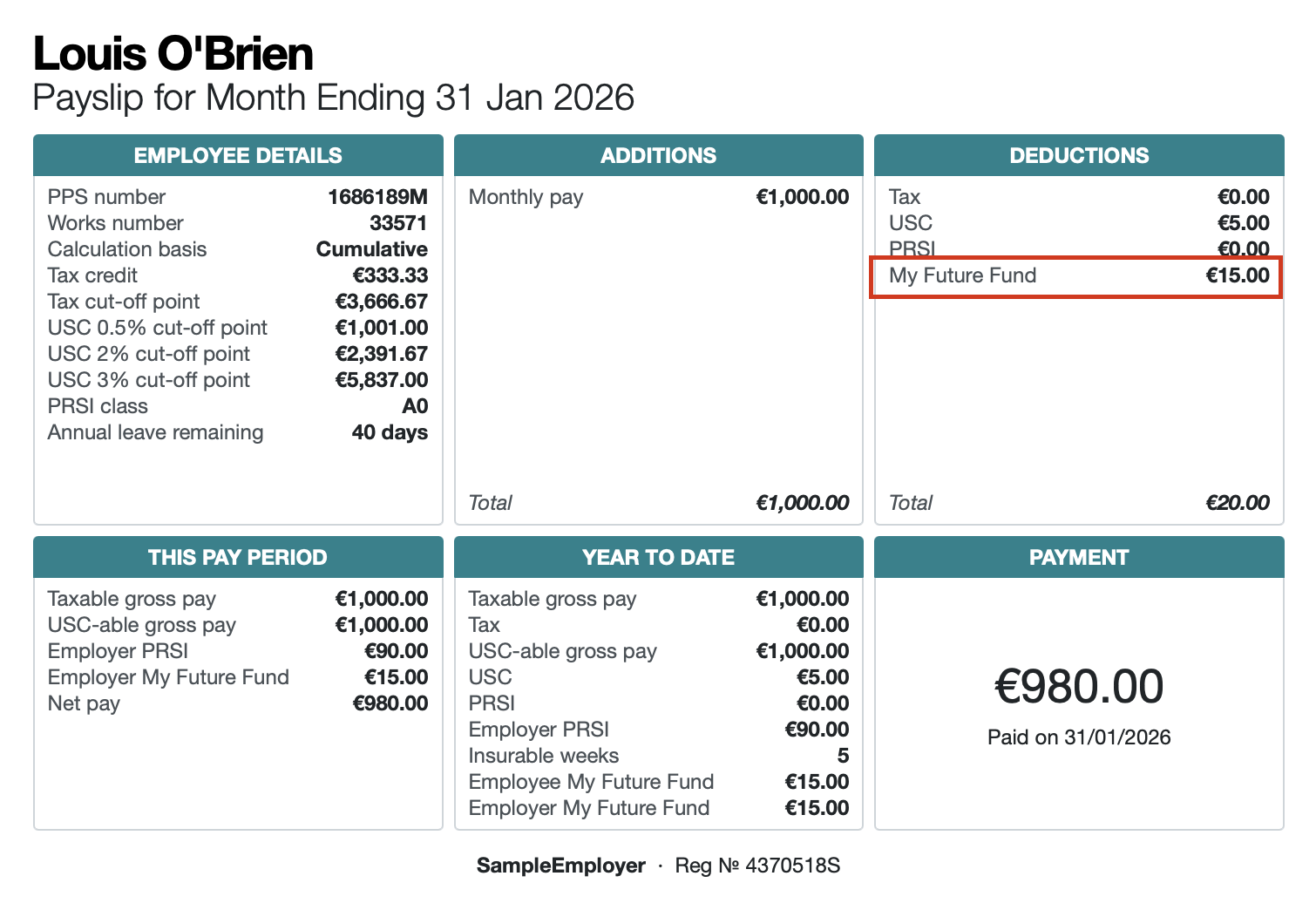
  • Shown on payslips & reports


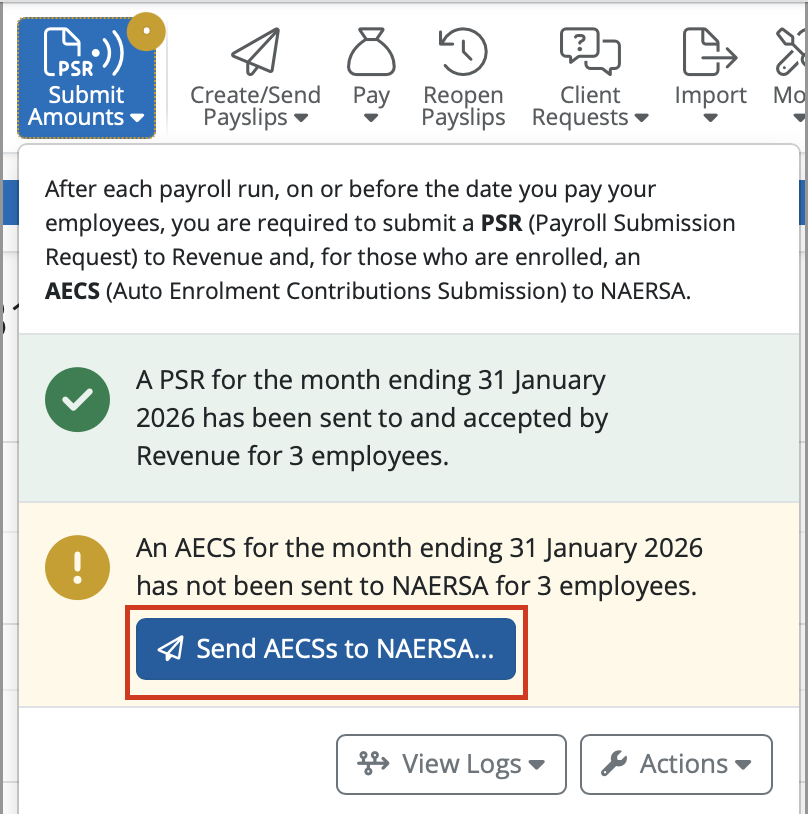
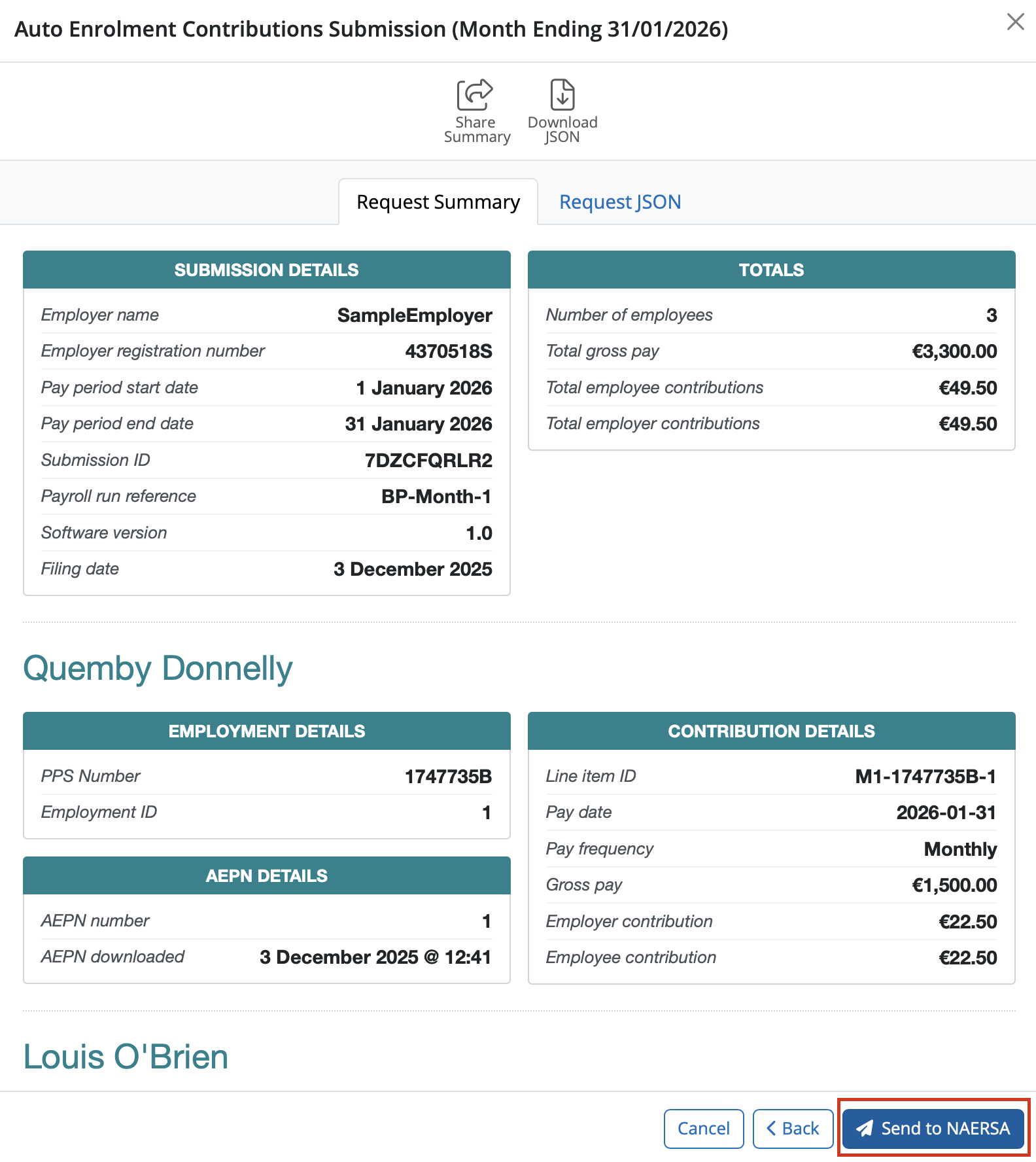
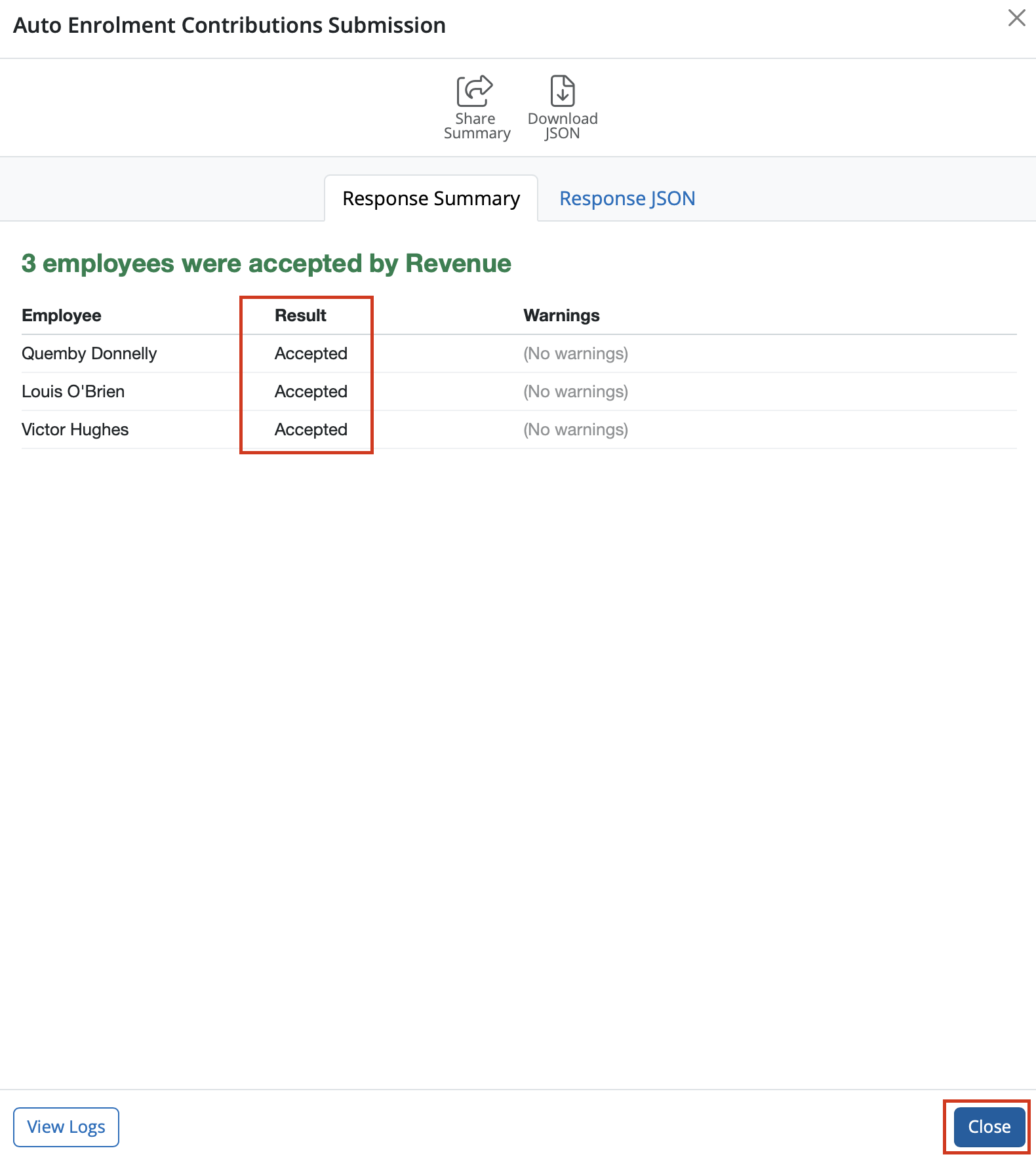
3. Submitting AECS

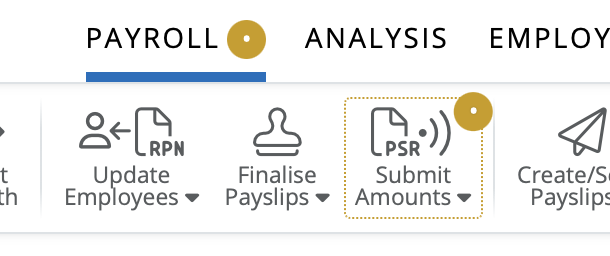
  • Finalise the payslips
  • AECS is generated alongside PSR
  • Click > Send AECS before 6.30pm on payday (as corrections are no longer accepted after this time)


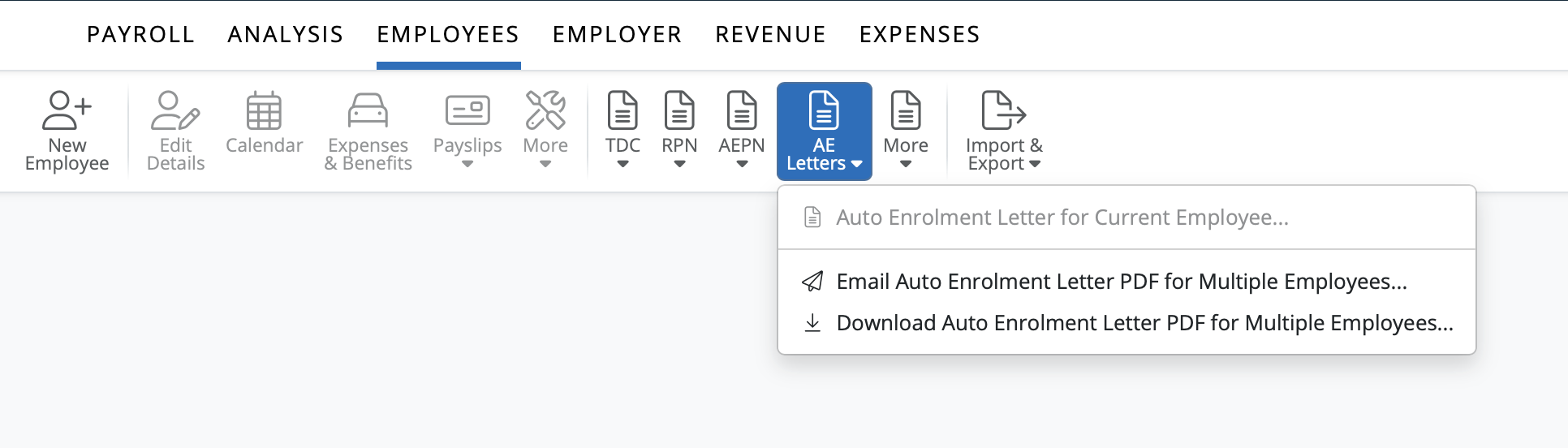
4. Employee Letters

  • Go to Employees > AE Letters
  • Choose Print/Create PDF or Email Auto Enrolment Letters

5. Records

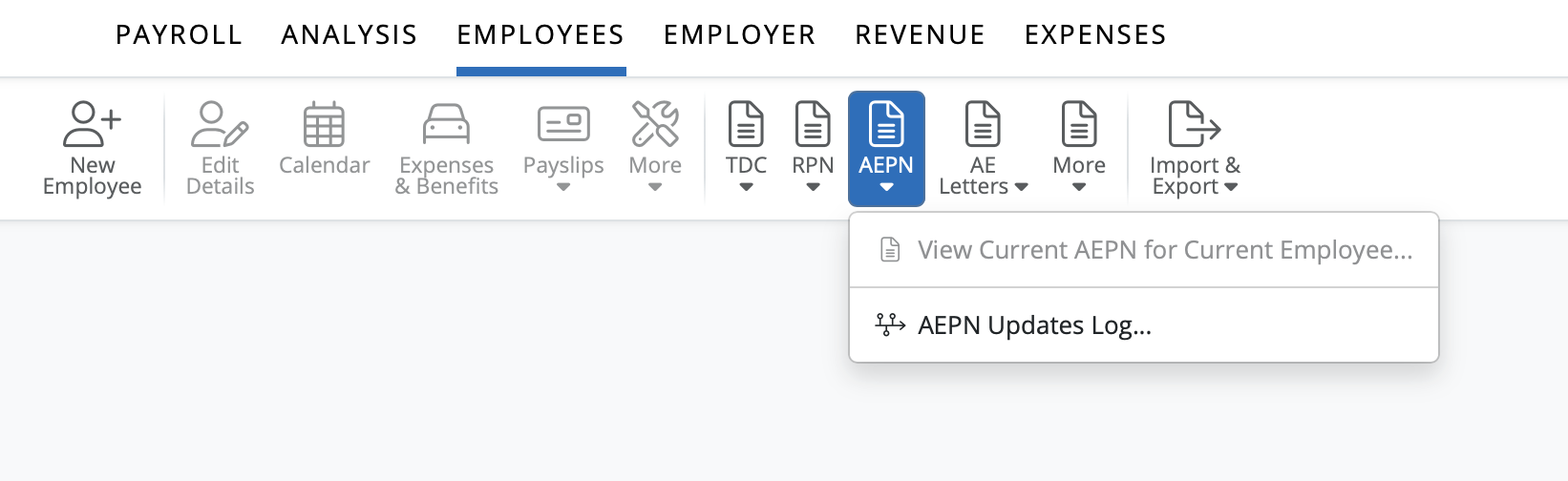
  • AEPN Details are recorded in the employee’s file
  • Go to Employees > Select an Employee > AEPN


Need help? Support is available at 01 8352074 or [email protected].

BrightPay (Cloud) System Requirements2025 BrightPay - AvailabilityWhat's New in BrightPay?Two Factor Authentication - OrganisationIntroduction to BrightPayGetting StartedImporting Into BrightPay from BrightPay WindowsMoving to BrightPay from another payroll softwareUser ManagementMultiUser EnhancementsEmployer DetailsEmployee DetailsDigital CertificatesRevenue Payroll Notifications (RPNs)Processing PayrollPayroll Submission Requests (PSRs)Importing Pay Data using CSV FileDistributing PayslipsPaying EmployeesMaking Corrections in PayrollPayroll CalendarBenefit in KindEmployee Self Service PortalBrightPay (Cloud) Service InfrastructurePayroll JournalsAnalysisPayroll DeductionsNational Minimum Living WagePensionsSwitching an Employee's Pay FrequencyEnhanced Reporting Requirements (ERR)BrightExpensesPayslip Translations2025 Budget - Employer FocusAnnual LeaveEmployment Law - InformationSEPA format - Banks catered for in BrightPayTwo Factor Authentication - EmployeesAuto Enrolment