We are currently investigating an issue with BrightPay and have temporarily restricted some levels of access

The Auto Enrolment Contribution Submission needs to be reported to the National Automatic Enrolment Retirement Savings Authority (NAERSA). This information is reported on the Auto Enrolment Contribution Submission (AECS).
Find the step by step guide for how to process Auto Enrolment in BrightPay here.
After the AEPN (Auto Enrolment Pension Notification) is processed you can see what employees in the Payroll section have been enrolled in My Future Fund. Under the Additions and Deductions heading you will see My Future Fund details including the Employer and Employee Contribution rates.
On the right of the screen under ‘This Period’ tab you will see the amounts for the Employer and Employee Contribution for My Future Fund. The Employee’s Contribution amount is deducted from Net Pay.
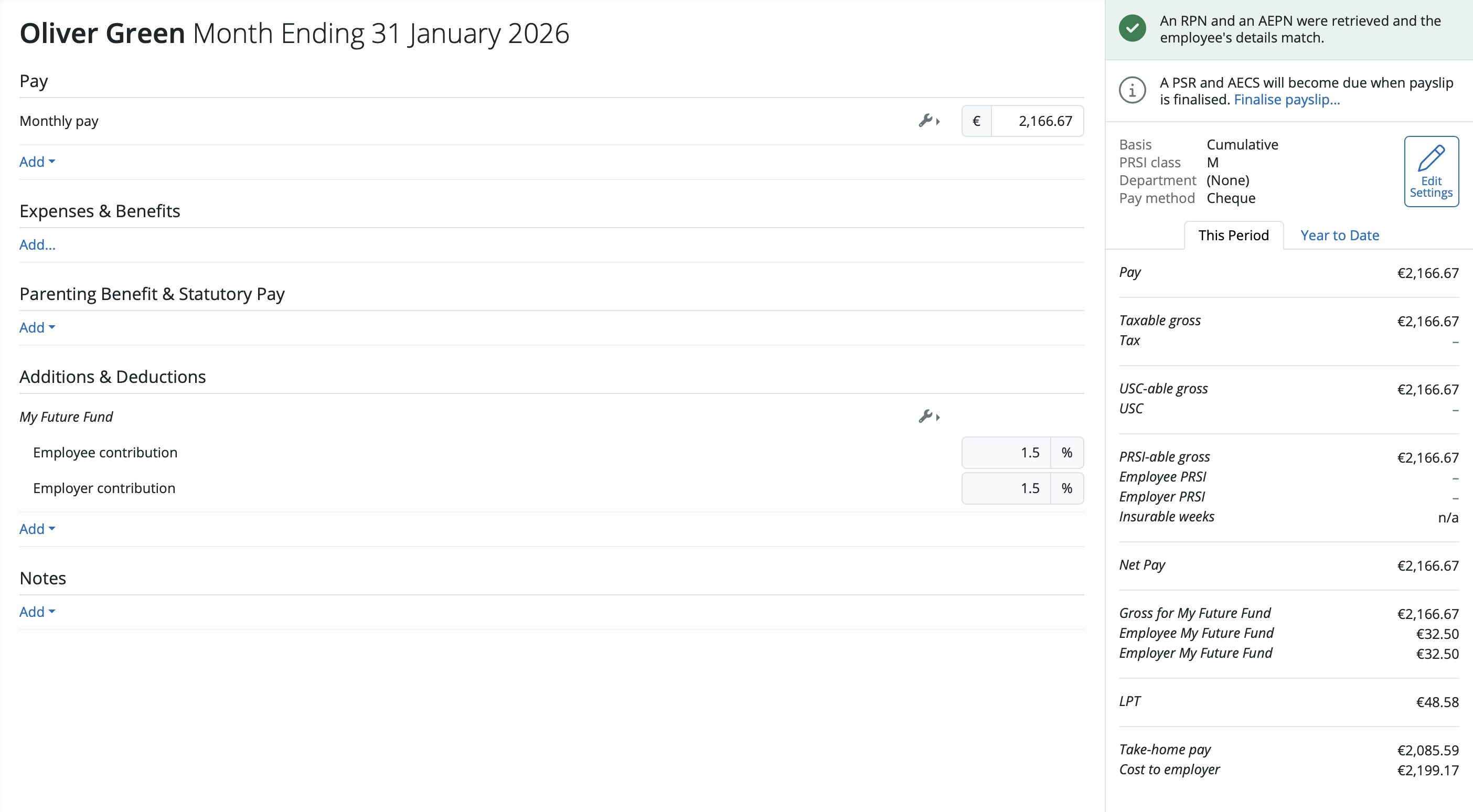
The status has been updated on the right hand side of the screen for the employee that an RPN and AEPN were retrieved and the employee’s details match.

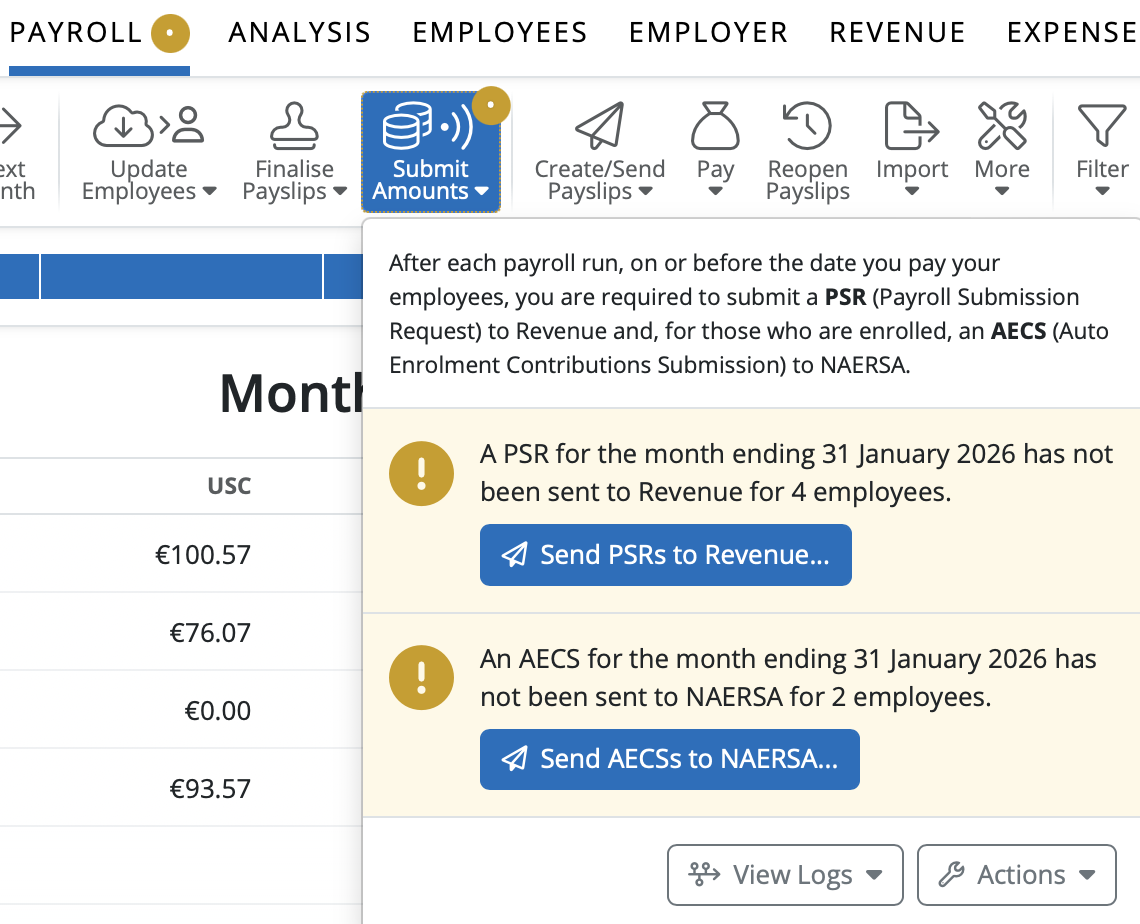
Once the payroll is processed and the payslips are finalised you need to send your Auto Enrolment Contribution Submission to NAERSA on the pay date before 6.30pm You can do this after or before sending the PSR to Revenue. Select ‘Send AECS to NAERSA’.
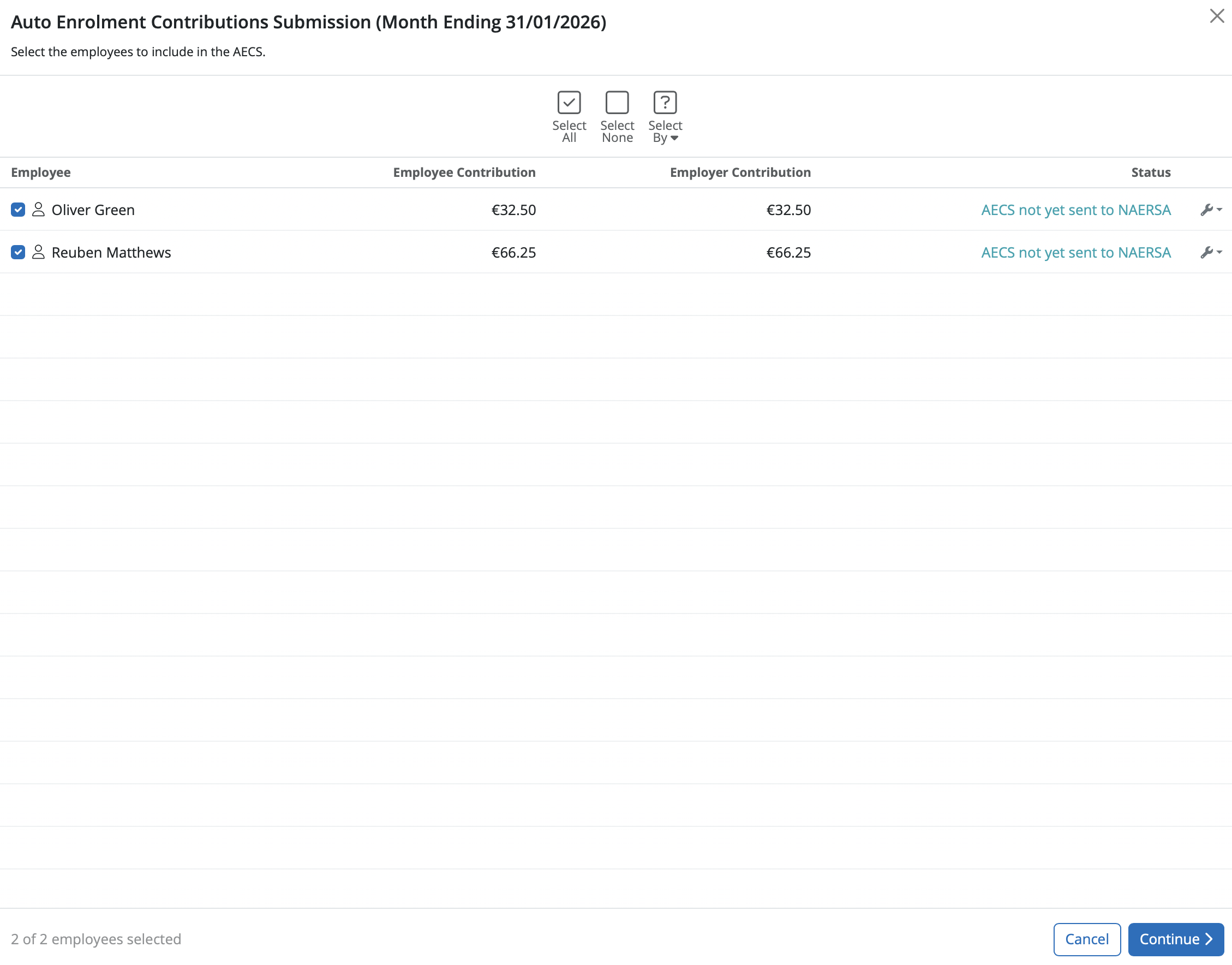
A summary of the information to send including Employees’ names and the Employer and Employee Contribution amounts. Select ‘Continue’.
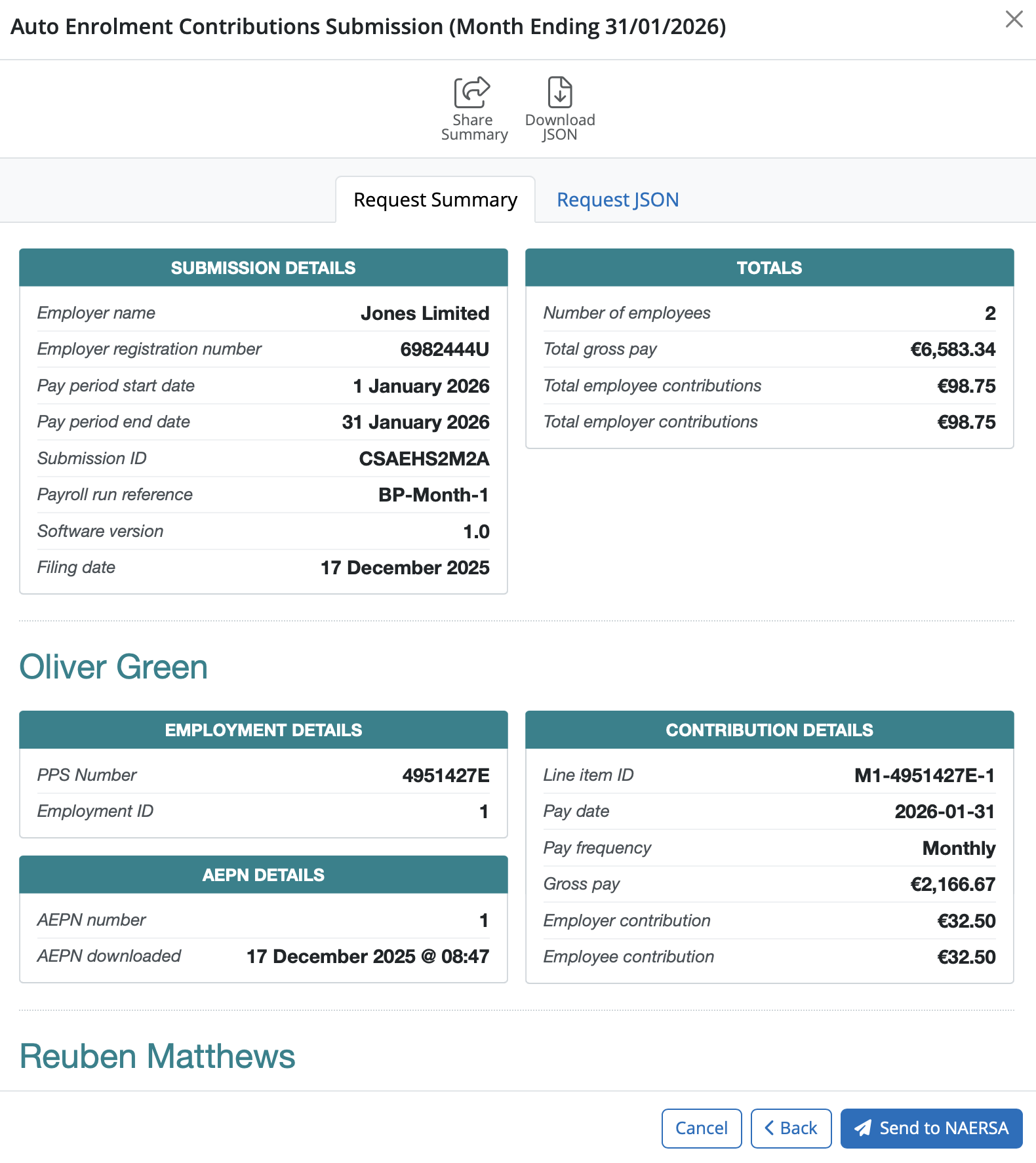
The submission details including employer information, totals and individual employees’ details are available to check before sending. Select ‘Send to NAERSA’ in order to send the AECS.
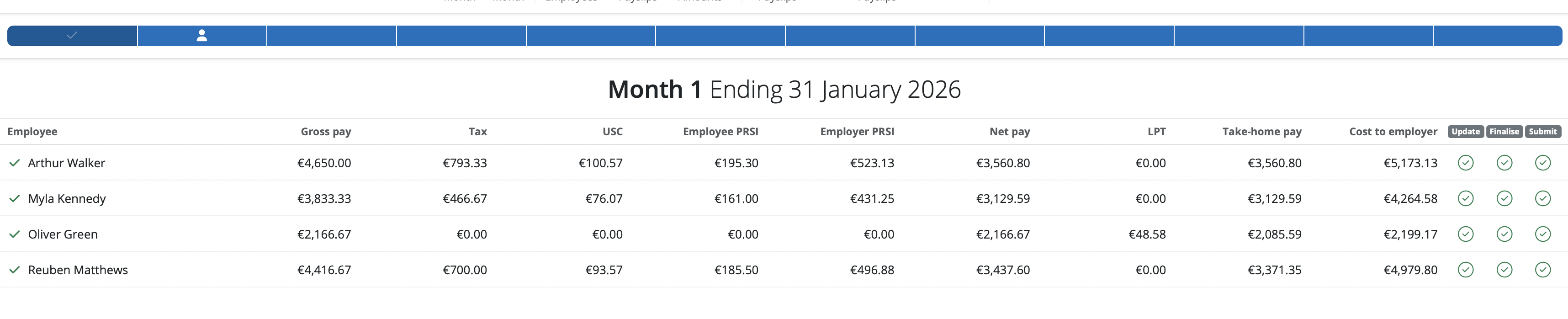
Once the AECS is sent to Revenue the information is updated on the Submit Amounts icon and the Submit status on the Payroll Summary screen.

Need help? Support is available at 01 8352074 or [email protected].







Copyright © 2026 Thesaurus Software Ltd T/A Bright Software Group.
Unit 35 Duleek Business Park, Duleek, County Meath, A92 N15E, Ireland
[email protected] 01 8352074