
Black Friday
 

Restoring from a BrightPay Connect Backup

Once an employer has been connected, BrightPay Connect will maintain a chronological history of your backups automatically for you. These backups can be restored at any time, if required.

To restore a backup from BrightPay Connect


1) On BrightPay’s starting screen, select the Backup & Self Service tab:
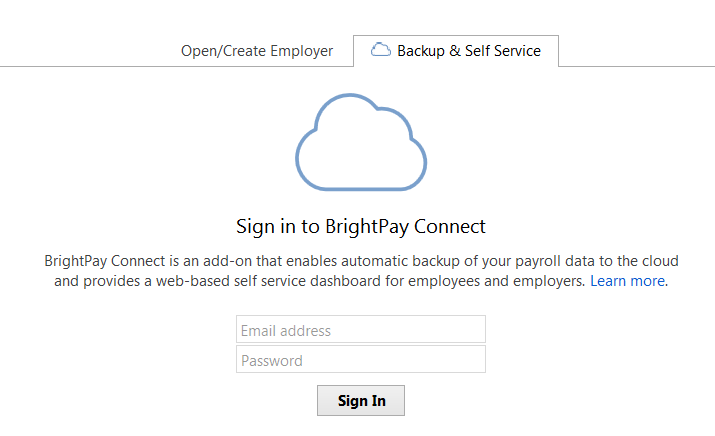


2) Sign in to your BrightPay Connect account. The employers that have been connected to your BrightPay Connect account will be displayed on screen, as well as the date and time that they last synchronised.

3) Click the spanner symbol to the right of the employer file you wish to restore and select 'Restore from Cloud Backup..'.

4)  Select the backup you wish to restore and click 'Restore'.

5) As soon as the download is complete, click 'Restore and Open' to replace your current data file with the backup. Alternatively, press 'Save as' to save the backup to a location on your computer.


A backup can also be restored while you are in an employer file which is connected to BrightPay Connect:


1) Click the green Cloud icon at the top right of the screen and select 'Restore from Cloud Backup'.

2)  Select the backup you wish to restore and click 'Restore'.
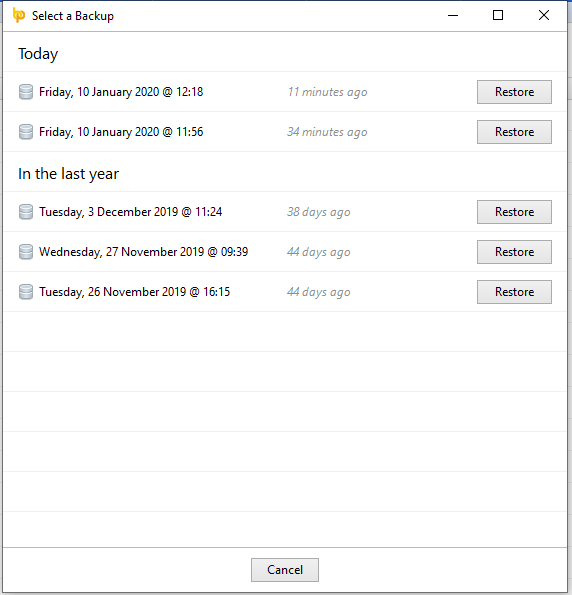


3) As soon as the download is complete, click 'Restore and Open' to replace your current data file with the backup. Alternatively, press 'Save as' to save the backup to a location on your computer.


Need help? Support is available at 01 8352074 or [email protected].

2026 BrightPay - System RequirementsBright ID2026 Budget - Employer Summary2026 BrightPay - AvailabilityIntroduction to BrightPayStarting the New Tax YearImporting from the Previous Tax YearInstalling BrightPayMoving from Thesaurus Payroll Manager to BrightPayMoving to BrightPay from another payroll softwareMoving BrightPay to a new PCBureau Enhancements - Additional FunctionalityEmployer SetupDigital CertificatesEmployee SetupRevenue Payroll Notifications (RPNs)Payroll CalendarProcessing PayrollImporting Pay Data from a CSV FilePayroll DeductionsPayroll Submission Requests (PSRs)Distributing PayslipsPaying EmployeesSEPA format - Banks catered for in BrightPayMaking Corrections to PayrollRevenue PaymentsRevenue - Contact Telephone NumbersAnalysisPayroll JournalsProcessing StartersProcessing LeaversBenefit in KindIllness BenefitParenting BenefitsPensionsSwitching an Employee's Pay FrequencyBacking Up & Restoring Data FilesYear EndLeave Reporting & Employee CalendarAnnual LeaveLeave EntitlementsEmployment LawCSOGlossary of Terms (Pre 2019) - Foreign Language Help SheetsBrightPay Connect
BrightPay Connect - OverviewRegistering for BrightPay ConnectConnecting an Employer to BrightPay ConnectCustomising your BrightPay Connect AccountAssigning a New User in BrightPay ConnectEditing/Deleting a User from BrightPay ConnectEnabling Employee Access to Self ServiceConfiguring Employee Self Service OptionsDisabling/Editing Employee Access to Self ServiceInviting Employees to use Self ServiceBacking Up to BrightPay ConnectRestoring from a BrightPay Connect BackupUploading Previous Year Data to BrightPay ConnectDeleting a Company in BrightPay ConnectTwo Factor AuthenticationEmployer Self Service PortalEmployee Self Service PortalConnect for BureausConnect MultiUser EnhancementsBrightPay Connect - Terms of Service
GDPRBright Terms and Conditions and BrightPay End User Licence AgreementEnhanced Reporting Requirements (ERR)BrightExpensesTPM v BP - Employee recordsTPM v BP - Running the payrollBP v TPMIssue Activating your Licence KeyAuto-Enrolment – Employer Help GuideAuto-Enrolment – Employer Help Guide